Confused about how to log in to your ministry card platform? This guide walks church administrators through the login process, dashboard navigation, and card management.
If you've recently signed up for a digital ministry card platform, one of the first things you'll need to do is log in to your account. The ministry card login process is your gateway to creating, editing, and managing digital membership cards for your church staff and ministry leaders. This guide walks you through everything you need to know about accessing your ministry card dashboard and making the most of its features.
What Is a Ministry Card Login?
A ministry card login is the secure authentication process that gives church administrators access to their digital card platform's dashboard. Once logged in, administrators can create new cards for staff members, update contact information, customize branding, generate QR codes, and view engagement analytics. The login ensures that only authorized church personnel can manage the church's digital identity.
How to Log In to Your Ministry Card Account
The login process is straightforward and takes just a few seconds. Here's a step-by-step walkthrough:
Step 1: Navigate to the Login Page
Open your web browser and go to the Ministry Cards website. Look for the 'Sign In' or 'Login' button, typically located in the top right corner of the homepage. Clicking this button will take you to the secure login page.
Step 2: Enter Your Credentials
On the login page, enter the email address and password you used when registering your church's account. If you've forgotten your password, use the 'Forgot Password' link to receive a reset email. Follow the link in the email to create a new password, then return to the login page to sign in.
Step 3: Access Your Dashboard
After entering your credentials, click 'Sign In.' You'll be taken directly to your ministry card dashboard, where you can view all your existing cards, create new ones, and access analytics. If you're logging in for the first time, you may be prompted to complete your church's profile and set up your organization's branding.
What You Can Do After Logging In
Create and Manage Digital Cards
From the dashboard, you can create new digital membership cards for pastors, staff, and ministry leaders. Each card can be customized with the person's name, title, photo, contact information, and action buttons. You can also edit existing cards to update information or change the design.
Customize Your Church's Branding
The dashboard allows you to set your church's default branding — logo, theme colors, fonts, and button styles. These defaults are applied to all new cards, ensuring consistency across your entire ministry team.
Generate and Download QR Codes
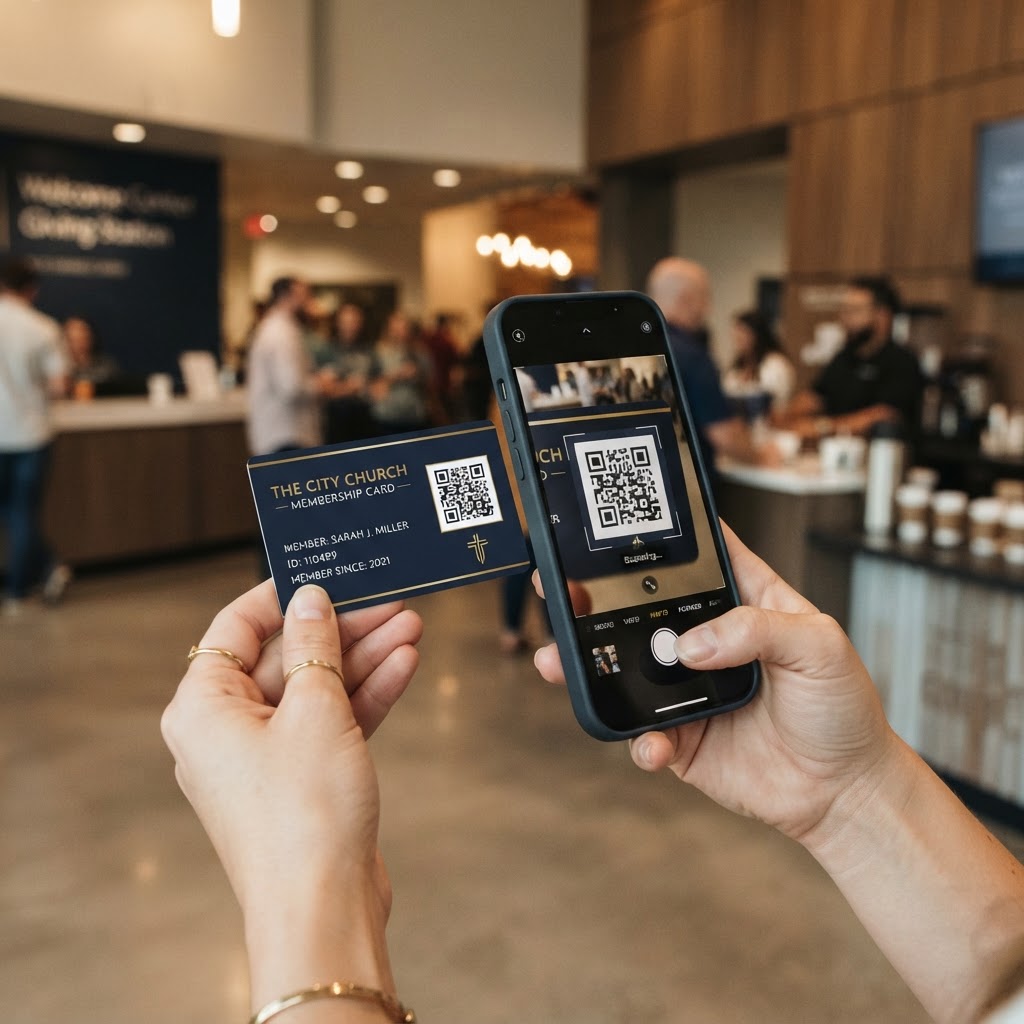
Each digital card comes with a unique QR code. From the dashboard, you can download these QR codes as image files to print on signage, nametags, bulletins, and other materials. QR codes make it easy for visitors and members to access a leader's digital card by scanning with their smartphone.
View Engagement Analytics
The analytics dashboard shows how many times each card has been viewed, which action buttons have been clicked, and how people found the card (QR code, direct link, or directory). This data helps you understand which leaders are most engaged with and which outreach methods are most effective.
Troubleshooting Common Login Issues
Forgot Your Password
If you can't remember your password, click the 'Forgot Password' link on the login page. Enter your email address, and you'll receive a reset link. Follow the link to set a new password. If you don't receive the email within a few minutes, check your spam folder.
Account Not Yet Activated
If you recently registered but can't log in, check your email for an activation link. Some platforms require email verification before the account is fully active. Click the link in the verification email, then try logging in again.
Browser or Cache Issues
If the login page isn't loading properly, try clearing your browser cache and cookies, or try logging in using an incognito or private browsing window. If the problem persists, try a different browser or device.
Best Practices for Ministry Card Account Security
- Use a strong, unique password that you don't use for other accounts
- Limit dashboard access to authorized church staff and administrators
- Change your password periodically — every 3 to 6 months
- Never share your login credentials with unauthorized individuals
- Log out of the dashboard when using shared or public computers
- Enable two-factor authentication if your platform supports it
Managing Multiple Users
If your church has multiple staff members who need dashboard access, most ministry card platforms allow you to invite additional users. Each invited user gets their own login credentials, so you don't need to share a single password. You can assign different permission levels — for example, giving full administrative access to the senior pastor while limiting other staff to viewing and editing only their own cards.
Getting Help with Your Ministry Card Login
If you're still having trouble logging in, most platforms offer customer support via email or chat. Before reaching out, gather the following information: the email address associated with your account, a description of the issue you're experiencing, and a screenshot of any error messages. This will help the support team resolve your issue quickly.
The ministry card login is your entry point to a powerful set of tools for managing your church's digital identity. Once you're comfortable with the login process, you can focus on what matters most — creating beautiful, effective digital cards that help your church connect with members and visitors.